
Every website owner fears the moment their site goes dark. You refresh your page, and instead of your carefully crafted homepage, you see stark white text: “Error 508 Resource Limit Reached.”
It’s a panic-inducing moment, but it’s also the clearest signal that your hosting environment has failed to keep up with your growth.
Most advice on the internet tells you to upgrade your hosting plan once you hit 10,000 monthly visitors. This is a dangerous generalization. The reality is far more technical: you might exceed your limits with just 2,000 visitors if your plugins are inefficient or your database is bloated.
Knowing when to move from shared to vps hosting requires looking beyond traffic analytics and examining server resource metrics. In this guide, we will teach you how to diagnose the specific technical symptoms of outgrowing shared hosting, interpret cPanel resource graphs, and troubleshoot performance bottlenecks before they crash your site.
Table of Contents
Sign 1: Frequent 503 and 508 Resource Limit Errors
Nothing scares away a potential customer faster than an error page. While 404 errors are bad management, 503 (Service Unavailable) and 508 (Resource Limit Reached) errors are infrastructure failures. These are the definitive symptoms of outgrowing shared hosting.
On shared hosting, you share a server with hundreds of other users. Your host imposes “resource limits” to prevent one rogue site from crashing the server for everyone else. When your site demands more CPU power or RAM than these limits allow, the server kills the request to protect itself.
What happens when you exceed resource limits?
If you are seeing these errors intermittently—especially during traffic spikes or when running intensive tasks like backups—your site is bumping its head against the shared ceiling.
- 503 Service Unavailable: Usually temporary. The server is too busy to handle your request right this second. According to MDN Web Docs, this status code indicates the server is not ready to handle the request.
- 508 Resource Limit Reached: A hard stop. You have hit the maximum allowed CPU or memory usage for your account.
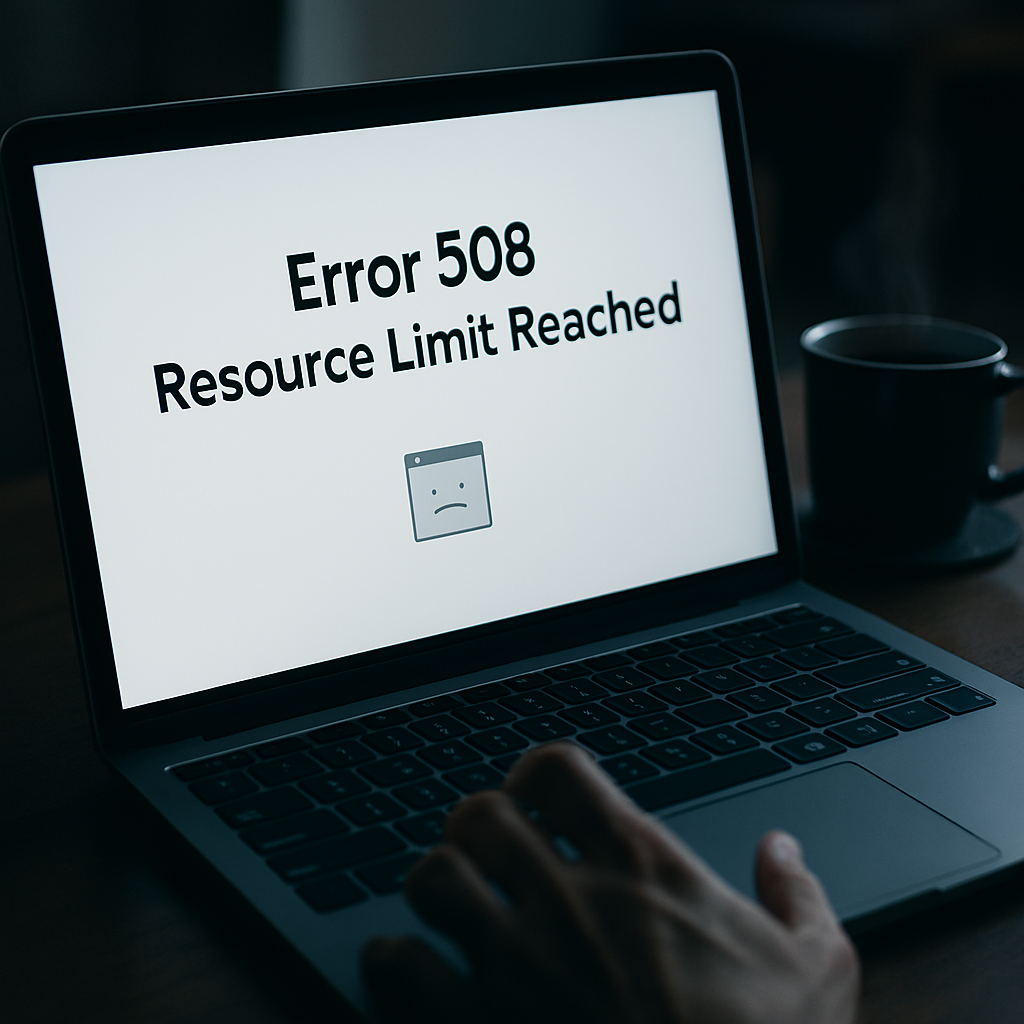
Image: A 508 error indicates you have maxed out your allocated server resources.
Why traffic isn’t the only culprit:
You don’t need a viral post to trigger this. A poorly coded plugin, a cron job running too frequently, or a inefficient WordPress theme can consume resources in the background. If you are consistently seeing these errors, it is time to fix 508 resource limit reached issues or move to an environment where you have dedicated resources.
Sign 2: Persistent CPU Throttling (The “Speed Limit” Hits)
CPU throttling is the silent killer of website performance. Unlike a crash, which is obvious, throttling happens invisibly in the background, slowing your site down to a crawl without taking it fully offline.
In the world of shared hosting vs vps performance, CPU Throttling is the biggest differentiator.
Understanding CPU Throttling in Shared Hosting
On a shared server, the CPU (Central Processing Unit) is the brain that processes your PHP code, executes database queries, and generates your HTML pages. Think of the CPU limit as a speed limit on a highway. On a shared plan, you are limited to a specific percentage of the CPU (e.g., 10% or 25%).
When your site requires more processing power than that to load a page, the host “throttles” your usage. They intentionally slow down your processing speed to accommodate other neighbors on the server.
Symptoms of CPU Throttling:
- Slow Time to First Byte (TTFB): Your server takes a long time to even start sending data.
- Laggy Admin Dashboard: Your WordPress
/wp-adminarea feels sluggish or times out. - Slow Checkout for WooCommerce: Calculating shipping and taxes takes forever.
If you log into your cPanel and see that your CPU usage is regularly hitting 100% of your allotted limit, moving to a VPS removes these artificial caps. On a VPS, you are guaranteed CPU cores (or vCPUs) that are yours and yours alone. No one else can “steal” your power, and the host won’t throttle you for using the specs you paid for.
Sign 3: Recurring WordPress Database Connection Errors
If you have ever seen the screen that says “Error establishing a database connection,” you know the sinking feeling it induces. This error means WordPress cannot communicate with the database where all your content, settings, and user data are stored.
For bloggers and store owners, this acts as a warning sign. While we will discuss ecommerce specifics later, frequent connection issues often mean you need to troubleshoot WordPress database errors immediately.
The MySQL Max Questions Limit
Shared hosting environments restrict the number of database queries your site can run per hour. This is known as the “MySQL Max Questions” limit.
Every time a page loads, WordPress asks the database a series of questions:
- “What is the site title?”
- “Show me the 10 most recent posts.”
- “Get the user profile for this visitor.”
A complex WooCommerce store with hundreds of products, multiple variations, and active customer sessions can generate thousands of queries in minutes.
Image: A database connection error often signals database limit restrictions.
Why VPS solves this:
Shared hosts limit queries to prevent one site from overloading the database server for everyone else. On a VPS, you have your own MySQL database instance (often on the same physical machine). You set the limits. If your store gets busy, the database scales with you rather than rejecting the connection.
Sign 4: The “Inode Limit” Ceiling (File Storage Exhaustion)
This is a sign almost no one talks about until it’s too late. You might check your disk usage and see you have only used 5GB of your 50GB allowance, yet you can’t upload new images or update plugins.
You have likely hit the Inode limit.
Shared Hosting Inode Limits Explained
An inode is a data structure that stores information about a file. Every email, image, webpage, and temporary cache file on your server counts as one inode, regardless of how large that file is. As detailed in Linux documentation, inodes are the fundamental way file systems track data.
Shared hosting providers often set strict inode limits (e.g., 100,000 or 250,000 inodes) because too many files slow down the file system scanning process on a shared server.
What consumes Inodes?
- WordPress Cache Files: Plugins like WP Rocket or W3 Total Cache generate thousands of tiny static files.
- Email Storing: If you leave emails on the server, each email is an inode.
- Backups: Storing multiple backups of your site on the same hosting account eats up inodes rapidly.
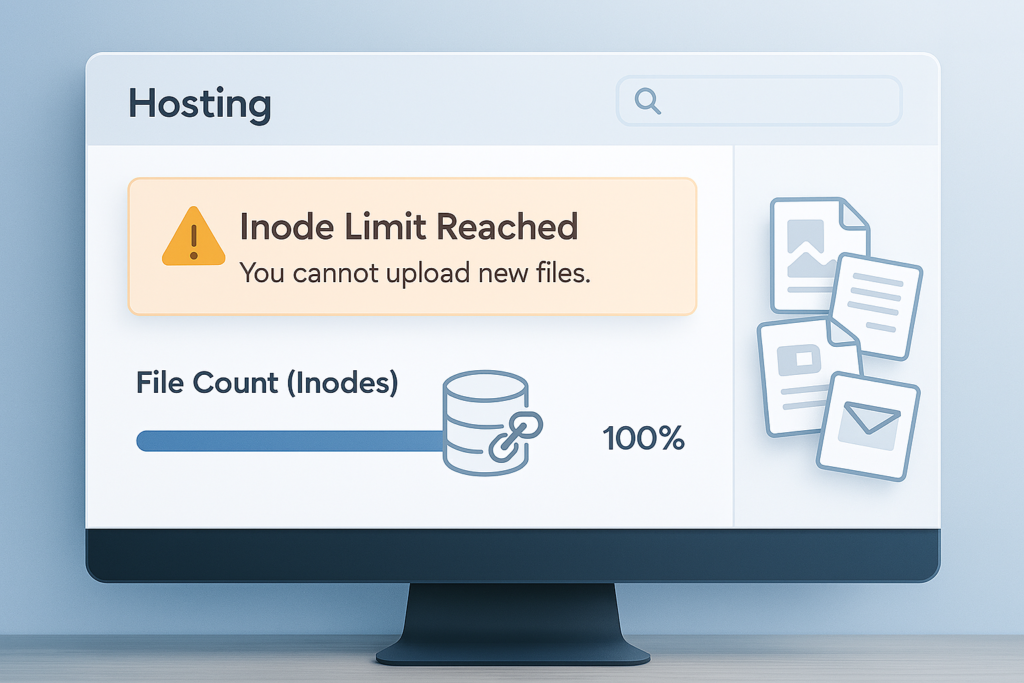
Image: Reaching your inode limit prevents file creation regardless of disk space.
If you are constantly cleaning up cache or deleting old emails just to stay functional, you are fighting a losing battle. VPS hosting typically allows significantly higher inode counts (or counts them within your disk space limit), giving you the freedom to run caching plugins and maintain proper backups without fear of locking yourself out.
Sign 5: Signs You Need to Upgrade Shared Hosting for Ecommerce
For online store owners, the stakes are higher. A slow blog loses a reader; a slow store loses a sale. Signs You Need to Upgrade Shared Hosting for Ecommerce become crystal clear when you analyze “Entry Processes.” While Inodes measure files, Entry Processes measure the number of simultaneous scripts running on your site.
The “Doorway” Analogy
Think of Entry Processes like the doors to a retail store.
- Shared Hosting: Has a narrow doorway. Only 10 people can walk through and shop at the exact same second. If the 11th person tries to enter, they are stuck in line (or get a 508 error).
- VPS Hosting: Has a massive double-door entrance. Hundreds of people can enter simultaneously.
For a blog, 10-20 entry processes is usually plenty. For an e-commerce site running a flash sale?
- User A is viewing a product.
- User B is adding to the cart (processing AJAX).
- User C is checking out.
- User D is running a search.
- Cron Jobs are updating stock levels in the background.
If you exceed your “Entry Processes” limit, your site will throw 508 errors specifically during high-traffic moments. This is the worst possible time for a crash because it costs you real revenue. A VPS allows you to handle these concurrent connections seamlessly.
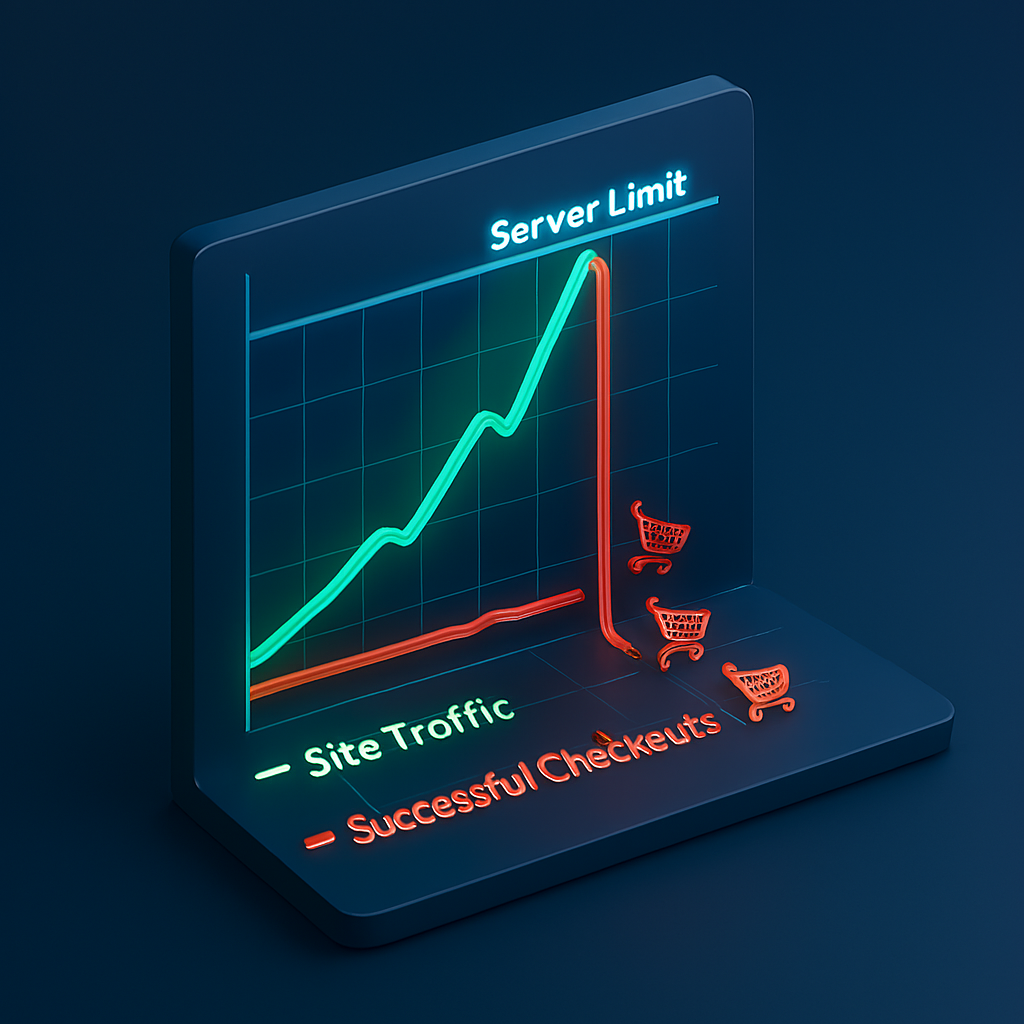
Image: High resource usage during sales spikes can lead to checkout abandonment.
How to Diagnose Your Resource Usage in cPanel
You shouldn’t guess if your site is slow; you should prove it. Most quality shared hosts provide a “Resource Usage” tool in cPanel. Knowing how to check server resource usage cPanel is the most accurate way to decide when to move from shared to vps.
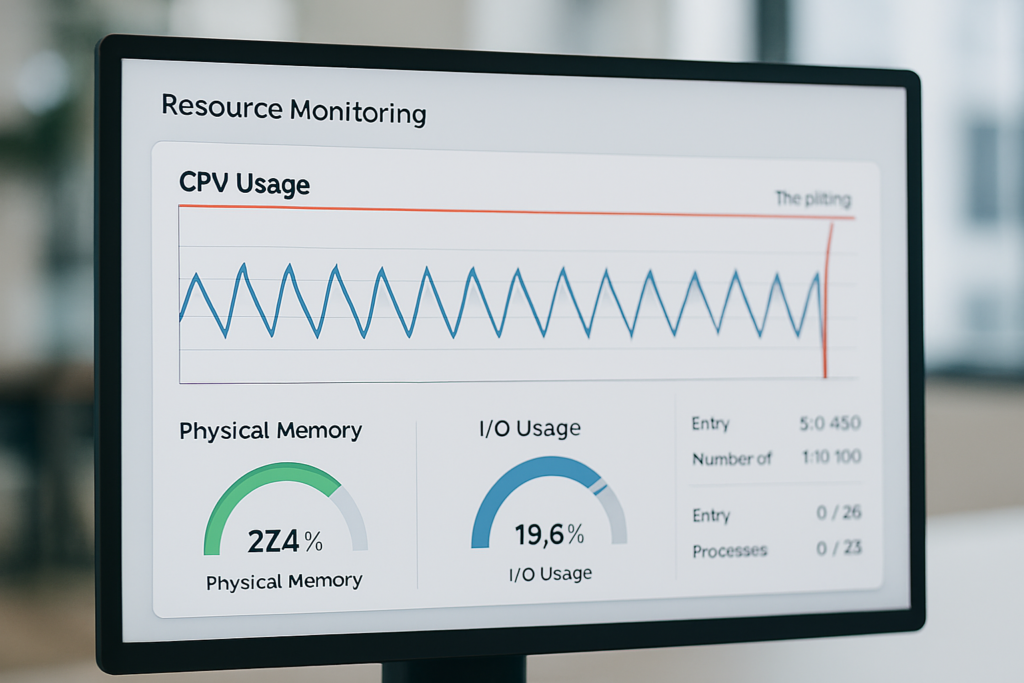
Image: The cPanel Resource Usage interface allows you to visualize your server consumption.
Reading the Graphs
When you access the “Resource Usage” metric, you don’t just look at the numbers; you look at the shape of the graphical data.
1. The “Sawtooth” Pattern (Normal):
You want to see sharp, jagged peaks that immediately drop back down. This indicates a request came in, the server processed it quickly, and returned to idle. This is healthy behavior.
2. The “Plateau” or “Flatline” (Danger):
If your CPU or Physical Memory graph creates a flat line at the top (100%) or hovers near the max limit for extended periods, your site is struggling. It means the server cannot process requests fast enough to clear the queue before new requests arrive.
3. The “Spike and Crash” (Critical):
If you see a vertical line going straight to 100% followed immediately by a drop to zero (or a gap in data recording), your site likely crashed and restarted. This often coincides with the 503 or 508 errors mentioned earlier.
4. I/O Usage (Disk Speed):
If your Input/Output usage is consistently red, your site is reading and writing to the disk too aggressively. This is common with poorly configured caching plugins. High I/O slows down everyone on the shared server, prompting hosts to throttle you aggressively.
To check these stats:
- Log in to cPanel.
- Scroll to the “Metrics” section.
- Click “Resource Usage.”
If you see the “Flatline” or “Spike and Crash” patterns appearing daily, your host is effectively begging you to leave shared hosting.
Step-by-Step Migration Prep: Ensuring a Smooth Transition
Deciding when to move from shared to vps is only the first step. The actual migration process can be fraught with danger if you rush into it. Before you purchase that new VPS plan, you must prepare your current environment to prevent data loss and extended downtime.
1. Perform a Full Site Staging Backup
Do not rely on your host’s automated daily backups. Before touching anything, generate a full manual backup.
- Files: Use your file manager or an FTP client like FileZilla to download the entire
public_htmldirectory. - Database: Go to phpMyAdmin, select your WordPress database, and click “Export.” Choose the “Quick” method and format as SQL.
- Emails: If you use webmail, export your critical emails to a local client or forward them to a permanent address (like Gmail).
2. Clean House Before You Pack
There is no point in migrating garbage. Moving bloated databases or thousands of cache files to a new VPS will only make the migration slower and the initial setup sluggish.
- Clear All Caches: Purge your cache plugins completely.
- Delete Unused Plugins/Themes: Remove anything you aren’t using.
- Clean Up Transients: Use a plugin like WP-Optimize to clean out database transients.
- Check Inodes: Ensure you are well under your limit so the file transfer doesn’t stall.
3. Audit Your DNS Settings
Log into your domain registrar (where you bought your domain, e.g., GoDaddy, Namecheap). Note down your current Nameservers.
If you are moving to a new hosting provider, you will likely receive new Nameservers. Propagating these changes can take anywhere from a few hours to 48 hours. Plan your migration for a weekend or low-traffic period to minimize impact.
4. Verify PHP Versions and Extensions
Check your current PHP version in cPanel (“Select PHP Version”). Note the extensions you currently have enabled. When you set up your VPS, you must replicate this environment exactly to ensure your theme and plugins continue to function. If your current site runs on PHP 7.4, do not jump straight to 8.2 without testing first.
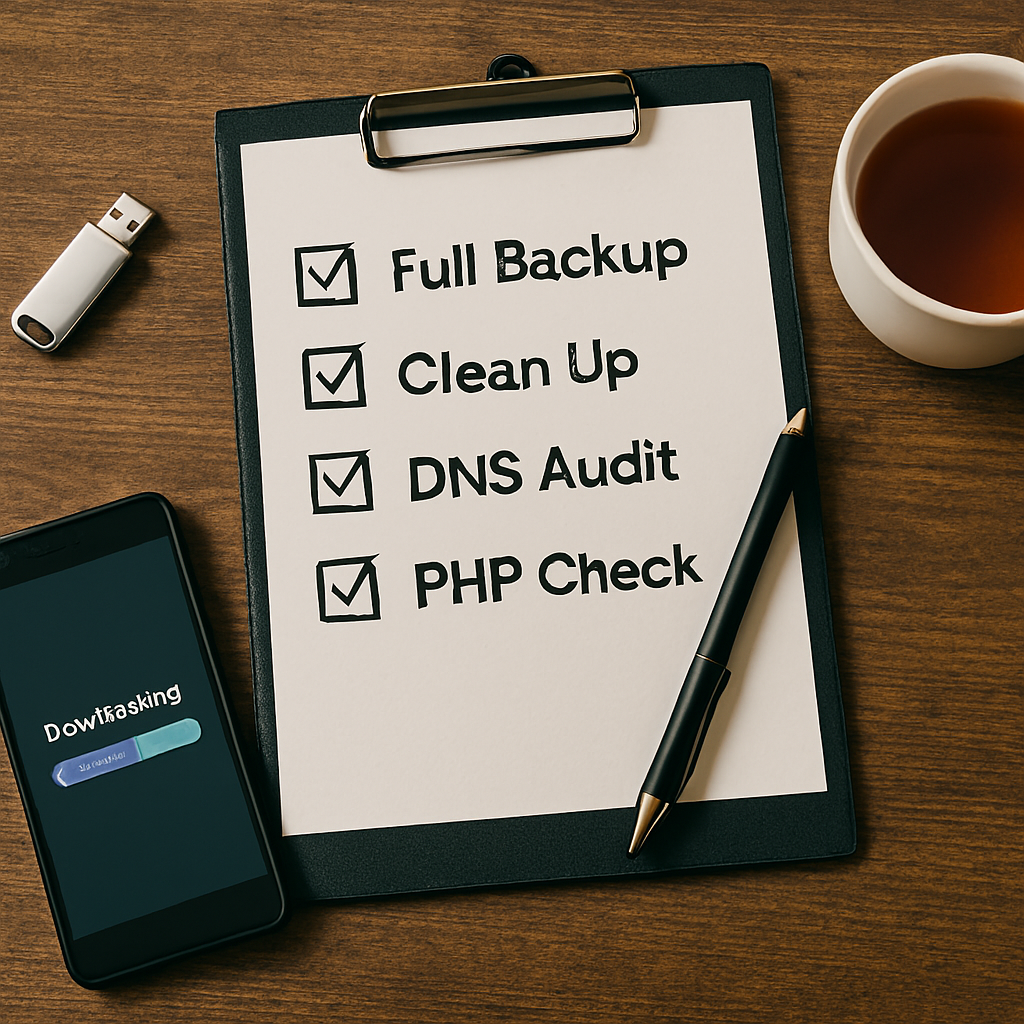
Image: A pre-migration checklist prevents data loss during the transfer.
By following these preparation steps, you ensure that the moment you switch on your VPS, you are moving a lean, optimized website rather than a broken mess.
5 Fixes to Try Before Upgrading (Save Your Budget)
Upgrading to a VPS is a significant step (and a cost increase). Before you make the leap, try these 5 fixes to alleviate pressure on your shared server.
| Fix | Why It Works | Impact |
|---|---|---|
| 1. Implement Caching | Plugins like WP Rocket serve static HTML files instead of processing PHP every time. | High (Reduces CPU load dramatically) |
| 2. Delete Unused Plugins | Deactivated plugins still consume database space and can be exploited. | Medium (Reduces bloat/inodes) |
| 3. Optimize Images | Large images eat bandwidth and I/O resources. Use a comprehensive image compression guide to reduce file size. | High (Faster load times, less I/O) |
| 4. Cleanup Transients | WP-Optimize can clean up temporary database options that slow down queries. | Medium (Reduces database load) |
| 5. Offload Backups | Don’t store backups on your live server. Use a plugin to send them to Google Drive or Dropbox. | Critical (Saves Inodes) |
Expert Tip: If your host uses CloudLinux, they might have a “Package Extensions” option where you can pay a small fee (e.g., $2-$5/mo) to double your Entry Processes or CPU limit. This is a cheaper “bridge” before a full VPS upgrade.
Making the Switch: Managed vs. Unmanaged VPS
If you’ve determined that shared hosting vs vps performance levels are hindering your growth, your next decision is management level.
A VPS (Virtual Private Server) gives you a slice of a dedicated server. You get dedicated RAM and CPU. However, a VPS is an unmanaged environment—it’s a blank computer.
The “DIY” Trap of Unmanaged VPS
If you move to an unmanaged VPS to save money:
- You must install Linux (CentOS, Ubuntu, etc.).
- You must install the web stack (PHP, MySQL, Nginx/Apache).
- You must secure the server (firewalls, fail2ban).
- You must patch updates.
For our audience of bloggers and WooCommerce beginners, unmanaged VPS is a disaster waiting to happen. You want to run your business, not become a system administrator.
Why Managed VPS is the Right Choice
You should opt for the best managed vps hosting for WordPress beginners. Managed VPS providers handle the technical backend:
- They handle server optimization and security.
- They provide a custom control panel (like cPanel or Plesk) that looks just like what you are used to.
- They offer WordPress-specific support.
While it costs more (~$30-$60/mo vs ~$5/mo for shared), the ROI is found in uptime, speed, and peace of mind.
FAQ: Moving to VPS Hosting
What is the main difference between shared and VPS hosting?
The main difference is resource allocation. Shared hosting is like living in an apartment complex where you share utilities with neighbors; if one neighbor hogs all the electricity (resources), the power goes out for everyone. VPS hosting is like owning a townhouse; you still share a street, but you have your own dedicated water, power, and gas lines that no one else can touch.
How much traffic can shared hosting handle?
There is no set number. A well-optimized shared site can handle 20,000+ visitors a month, while a bloated site might crash at 500. The technical limit is determined by your Entry Processes, CPU percentage, and I/O limits, not visitor count alone.
Is VPS hosting faster than shared hosting?
Generally, yes. Because you have dedicated RAM and CPU cores (No “Noisy Neighbor” effect), your server can process requests faster. However, an unoptimized VPS can be slower than optimized shared hosting if not configured correctly.
What are the signs of bad shared hosting?
Signs of bad shared hosting include frequent downtime unrelated to your traffic, slow customer support, failure to update server PHP versions, and CPU throttling in shared hosting happening constantly even with low traffic.
Can I move from shared to VPS without downtime?
Yes, but it requires careful migration. Most managed VPS hosts offer free migration services where their technical team moves your files, database, and emails for you. If doing it yourself, you must backup your site, propagate DNS, and test thoroughly before switching nameservers.
Does moving to VPS improve SEO?
Indirectly, yes. Google uses Core Web Vitals (speed and stability) as ranking factors. If moving to VPS eliminates 508 errors, improves Time to First Byte (TTFB), and stabilizes your site during traffic spikes, it will likely improve your search rankings and user retention.
Conclusion
Don’t wait for your site to crash before looking for a new home. The moment you see recurring resource limits, database errors, or CPU throttling in shared hosting, you have outgrown your current environment.
Moving to a VPS is not just about handling more traffic; it is about securing the stability and reputation of your brand. For e-commerce sites and growing blogs, the cost of downtime far outweighs the price of a reliable Managed VPS.
If you are ready to explore your options, check out our detailed breakdown of Shared vs VPS Hosting: The True Cost of Speed to see exactly what a performance upgrade could mean for your bottom line. When your business grows, your hosting must grow with it—don’t let a $5 hosting plan be the bottleneck for your success.
